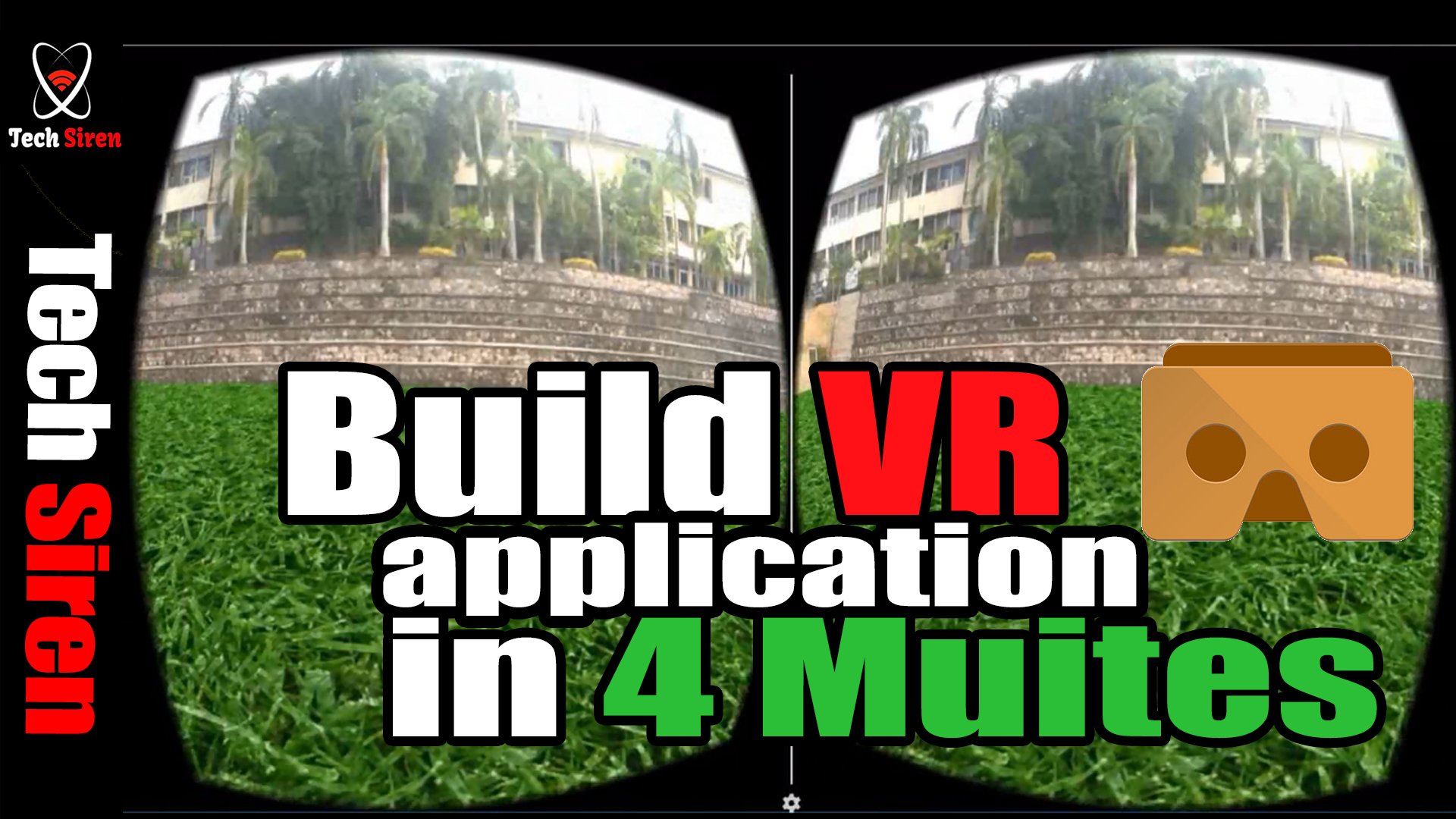
How to build Virtual Reality App with Unity Google Cardboard VR. With Google cardboard vr sdk for unity its really easy to build vr applications quickly and easily. The Google VR SDK for unity has been updated and gone on some major changs. I am using the old version of GVR sdk for unity in this tutorial. but i will show you how to use the new version as well, later in this article. This is a very basic VR tutorial i am only providing a basic guild to setup VR scene for people who are new to GVR. And I am hopping to do some advance tutorials on GVR in the future. You can also watch my youtube tutorial on my youtube channel. Lets get started.!
Create VR app with GVR version 1.4v and below
First Download the Google Vr SDK I have used ln Gvr SDK n this tutorial. In GVR version 1.5 and above there are some major changes in the SDK lets discuss those changes in the latter part of this article. download this version of the Google VR SDK for unity.
download old gvr unity package
Then open unity and create a new unity project. Delete everything in the scene.Then you have to import GVR unity package in to unity project. to do that, go to assets-> Import package-> Custom package.

After importing the unity package, you can see all the GVR assets will be imported to the scene. Import the GVRMain camera in to the scene from folder Google Vr –> Prefab–> GVRMain

Now its time to build your scene around the GVR camera. Be creative and come up with some cool scene that you can enjoy in VR. You can also add some script to transform the location of the GVR camera which will allow to observe the environment while moving around in the scene. After building your scene click on build project in file menu tool bar.
Then change the build platform to Android and click switch platform to change in to android platform. Then change the build settings as shown below. change the android target API level to 4.4 or above. And also set run application on landscape mode. after changing the settings as mentioned above click on build button. then select the location where you want to save the APK and click save. Now you have successfully build the VR application.