
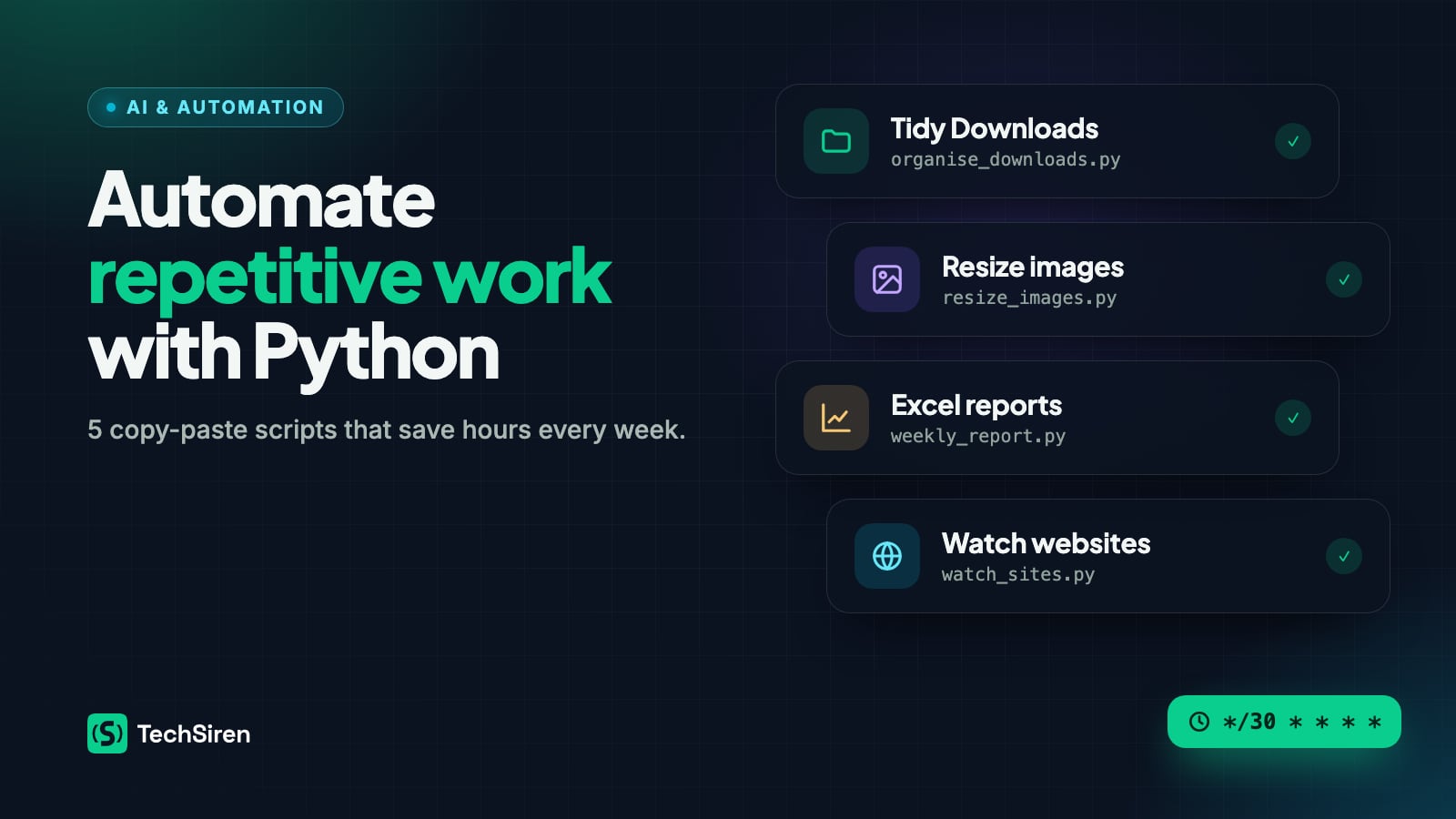
Most “automation” doesn’t need AI at all. A short Python script that runs while you make coffee can remove the small, boring jobs that quietly eat hours every week: sorting files, resizing screenshots, copying numbers into spreadsheets, checking whether a website is still up.
This guide walks through five scripts I find genuinely useful. Each one is complete, safe to try, and short enough to understand line by line. At the end we schedule them so they run without you.
Before you start
You need Python 3.10 or newer. Create a folder for your scripts and a virtual environment, then install the few libraries we use:
mkdir automations && cd automations
python3 -m venv .venv
source .venv/bin/activate   # on Windows: .venv\Scripts\activate
pip install pillow pandas openpyxl requests
Rule of thumb: automate a task when you do it often, it follows clear rules, and a mistake is easy to undo. Every script below starts in a safe “dry run” or read-only mode for exactly that reason.
1. Tidy your Downloads folder automatically
The Downloads folder is where files go to be forgotten. This script sorts files into sub-folders by type (images, documents, archives and so on). By default it only prints what it would do; add --apply to actually move files.
# organise_downloads.py
import argparse
import shutil
from pathlib import Path

CATEGORIES = {
    "Images": {".jpg", ".jpeg", ".png", ".gif", ".webp", ".svg", ".heic"},
    "Documents": {".pdf", ".docx", ".doc", ".txt", ".md", ".pptx", ".xlsx", ".csv"},
    "Archives": {".zip", ".rar", ".7z", ".tar", ".gz"},
    "Installers": {".exe", ".msi", ".dmg", ".pkg", ".deb"},
    "Audio & Video": {".mp3", ".wav", ".mp4", ".mov", ".mkv"},
}


def category_for(path: Path) -> str:
    for name, extensions in CATEGORIES.items():
        if path.suffix.lower() in extensions:
            return name
    return "Other"


def unique_destination(folder: Path, filename: str) -> Path:
    candidate = folder / filename
    stem, suffix, n = candidate.stem, candidate.suffix, 1
    while candidate.exists():
        candidate = folder / f"{stem} ({n}){suffix}"
        n += 1
    return candidate


def main() -> None:
    parser = argparse.ArgumentParser(description="Sort a folder's files into sub-folders by type.")
    parser.add_argument("folder", nargs="?", default=str(Path.home() / "Downloads"))
    parser.add_argument("--apply", action="store_true", help="actually move files (default is a dry run)")
    args = parser.parse_args()

    root = Path(args.folder).expanduser()
    for item in sorted(root.iterdir()):
        if item.is_dir() or item.name.startswith("."):
            continue
        target_dir = root / category_for(item)
        destination = unique_destination(target_dir, item.name)
        print(f"{item.name}  ->  {target_dir.name}/")
        if args.apply:
            target_dir.mkdir(exist_ok=True)
            shutil.move(str(item), destination)

    if not args.apply:
        print("\nDry run only. Re-run with --apply to move the files.")


if __name__ == "__main__":
    main()
Run python organise_downloads.py to preview, then python organise_downloads.py --apply when you are happy. The unique_destination helper means two files called invoice.pdf never overwrite each other.
2. Resize a folder of images in one go
Screenshots and phone photos are often far bigger than a blog, email or slide deck needs. This script makes web-friendly copies of every image in a folder, scaled down to a maximum width and saved as compressed JPEG or WebP. Your originals are never touched.
# resize_images.py
import argparse
from pathlib import Path

from PIL import Image, ImageOps

SUPPORTED = {".jpg", ".jpeg", ".png", ".webp", ".bmp", ".tiff"}


def main() -> None:
    parser = argparse.ArgumentParser(description="Make resized copies of all images in a folder.")
    parser.add_argument("source")
    parser.add_argument("--width", type=int, default=1600, help="maximum width in pixels")
    parser.add_argument("--format", choices=["jpeg", "webp"], default="webp")
    parser.add_argument("--quality", type=int, default=80)
    args = parser.parse_args()

    source = Path(args.source).expanduser()
    output = source / "resized"
    output.mkdir(exist_ok=True)

    for path in sorted(source.iterdir()):
        if path.suffix.lower() not in SUPPORTED:
            continue
        with Image.open(path) as image:
            image = ImageOps.exif_transpose(image)  # respect the phone's rotation
            if image.width > args.width:
                height = round(image.height * args.width / image.width)
                image = image.resize((args.width, height), Image.LANCZOS)
            if args.format == "jpeg":
                image = image.convert("RGB")  # JPEG has no transparency
            extension = "jpg" if args.format == "jpeg" else "webp"
            target = output / f"{path.stem}.{extension}"
            image.save(target, args.format.upper(), quality=args.quality, optimize=True)
        before, after = path.stat().st_size, target.stat().st_size
        print(f"{path.name}: {before // 1024} KB -> {after // 1024} KB")


if __name__ == "__main__":
    main()
Example: python resize_images.py ~/Pictures/screenshots --width 1200 --format webp. The new files land in a resized sub-folder, and the script prints the size saving for each one.
3. Turn a CSV export into a tidy Excel report
Many tools (banks, shops, analytics dashboards) export CSV files that you then copy into a spreadsheet by hand. With pandas you can produce the summary in one step. This example expects a CSV with date, category and amount columns and writes an Excel file with the raw data, a monthly summary and a per-category breakdown.
# weekly_report.py
import argparse
from pathlib import Path

import pandas as pd


def main() -> None:
    parser = argparse.ArgumentParser(description="Summarise a CSV export into an Excel report.")
    parser.add_argument("csv_file")
    parser.add_argument("--output", default="report.xlsx")
    args = parser.parse_args()

    data = pd.read_csv(Path(args.csv_file).expanduser(), parse_dates=["date"])
    data["month"] = data["date"].dt.to_period("M").astype(str)

    by_month = data.groupby("month", as_index=False)["amount"].sum()
    by_category = (
        data.groupby("category", as_index=False)["amount"]
        .agg(total="sum", transactions="count", average="mean")
        .sort_values("total", ascending=False)
    )

    with pd.ExcelWriter(args.output, engine="openpyxl") as writer:
        data.drop(columns="month").to_excel(writer, sheet_name="Data", index=False)
        by_month.to_excel(writer, sheet_name="By month", index=False)
        by_category.round(2).to_excel(writer, sheet_name="By category", index=False)

    print(f"Wrote {args.output}: {len(data)} rows, {len(by_category)} categories")
    print(by_category.head(5).to_string(index=False))


if __name__ == "__main__":
    main()
Run python weekly_report.py transactions.csv --output october.xlsx. If your export uses different column names, rename them once with data.rename(columns={...}) right after reading the file.
4. Get notified when a website changes or goes down
Waiting for a product to come back in stock, a course page to update, or simply want to know if your own site is down? This script checks a list of URLs, remembers a fingerprint (hash) of each page, and reports when something changes or stops responding.
# watch_sites.py
import hashlib
import json
from datetime import datetime
from pathlib import Path

import requests

URLS = [
    "https://www.techsirenblog.com/",
    "https://example.com/",
]
STATE_FILE = Path("site_state.json")
HEADERS = {"User-Agent": "Mozilla/5.0 (site-watch script)"}


def main() -> None:
    state = json.loads(STATE_FILE.read_text()) if STATE_FILE.exists() else {}
    stamp = datetime.now().strftime("%Y-%m-%d %H:%M")

    for url in URLS:
        try:
            response = requests.get(url, headers=HEADERS, timeout=15)
            response.raise_for_status()
        except requests.RequestException as error:
            print(f"[{stamp}] DOWN    {url}  ({error})")
            continue

        fingerprint = hashlib.sha256(response.content).hexdigest()
        previous = state.get(url)
        if previous is None:
            print(f"[{stamp}] WATCHING {url}")
        elif previous != fingerprint:
            print(f"[{stamp}] CHANGED {url}")
        else:
            print(f"[{stamp}] same    {url}  ({response.elapsed.total_seconds():.2f}s)")
        state[url] = fingerprint

    STATE_FILE.write_text(json.dumps(state, indent=2))


if __name__ == "__main__":
    main()
The first run records each page; later runs print CHANGED or DOWN when something differs. Be a good citizen: check pages every few minutes or hours, not every second, and respect each site’s terms. Some pages include timestamps or ads that change on every load; for those, extract just the part you care about (for example with BeautifulSoup) before hashing.
5. Run your scripts on a schedule
A script you have to remember to run is only half-automated. Let the operating system run it for you.
macOS and Linux: cron
Open your crontab with crontab -e and add a line per script. The five fields are minute, hour, day of month, month and day of week:
# Tidy Downloads every day at 18:00 (dry run removed once you trust it)
0 18 * * * cd ~/automations && .venv/bin/python organise_downloads.py --apply >> logs.txt 2>&1

# Check websites every 30 minutes
*/30 * * * * cd ~/automations && .venv/bin/python watch_sites.py >> sites.log 2>&1
Using the virtual environment’s own Python (.venv/bin/python) means cron finds your installed libraries, and >> logs.txt 2>&1 saves the output so you can see what happened.
Windows: Task Scheduler
Create the task from PowerShell (adjust the paths to your folder):
$action  = New-ScheduledTaskAction -Execute "C:\automations\.venv\Scripts\python.exe" `
           -Argument "watch_sites.py" -WorkingDirectory "C:\automations"
$trigger = New-ScheduledTaskTrigger -Once -At (Get-Date) `
           -RepetitionInterval (New-TimeSpan -Minutes 30)
Register-ScheduledTask -TaskName "Watch websites" -Action $action -Trigger $trigger
You can also do the same through the Task Scheduler app: Create Basic Task, choose a trigger, then set the action to start python.exe with your script as the argument.
Where AI fits in
These scripts follow fixed rules, which makes them fast, cheap and predictable. Add an AI model when a step needs judgment rather than rules: summarising the pages that changed, categorising messy transaction descriptions, or drafting a reply to an email. A good pattern is to keep the reliable Python pipeline and call a language model for that one fuzzy step. If you want to see how that works, read my guide on building your first AI agent with Python.
Start with one script, run it in dry-run mode for a week, and once you trust it, put it on a schedule. Those saved minutes add up quickly.